
Admin Product | Product Setup: New Product Creation Process
Overview
The biggest difference between newest product creation and original lies in the completely new revision of Package editing - add product This guide will explain the new product creation process feature in the Rezio Admin
JUMP TO
- Add Package
- New Version Package Editing Interface
- Package Description
- Item Settings
- Sales calendar & Session Settings
- Price Settings
- Available Quantity Settings
- Advanced Settings
- Publish Settings
- Listing the Product on Sales Channels
- Important Notes
Product > Add Product
At Product - To add a Product with brand new Product:
- If the new category is [Day Tour], [Multi-day Tour], [Private Tour], or [Activity] it will enter the newest product creation process. Please continue reading the instructions below.
- If the new category is [Ticket] or [Ticket (No session)] it will enter the original process. Please refer to this link.
After creation, you will enter the itinerary editing page.

Go to the [Package Settings] tab, and you will see the plan list. This will display all your packages.

Add Package
After Click [Add New Package], Simply use the questionnaire to pick your package option.
- Is your activity held on a fixed weekly schedule or only on specific dates?
- Fixed Weekly Schedule: Choose this option if your event occurs regularly on specific days of the week. You'll be able to exclude certain dates, such as public holidays.
- Specific Dates Only: Select this if your event runs on irregular, specific dates. This is perfect for unique or limited-time offerings. For example, events only held on 24 Dec, 12 Dec.

- When consumers purchase your products, will customers need to choose their preferred time?
- Select Departure Date: Best suited for products that last all day.
- Select Departure Date + Time Period: Best suited for products that have defined time slots.

Do your products have a quantity limit?
- Yes, there’s quantity limit: If you select this option, you'll need to answer the following question [Each session have its own quantity limit] or [All sessions share the same quantity limit]
- No, there’s unlimited quantity

For your products, does "each session have its own quantity limit" or do "all sessions share the same quantity limit" ?
- Each session has its own quantity limit
- All sessions share the same quantity limit
When consumers purchase your products, how is their "purchasing unit" presented?
- The purchase unit is mainly based on the identity category
- I want to customize the purchase unit

When consumers purchase your products, do they need to select specifications for bundled items?
- Yes, consumers need to select specifications for the bundled items.
- No, consumers don't need to select specifications for the bundled items

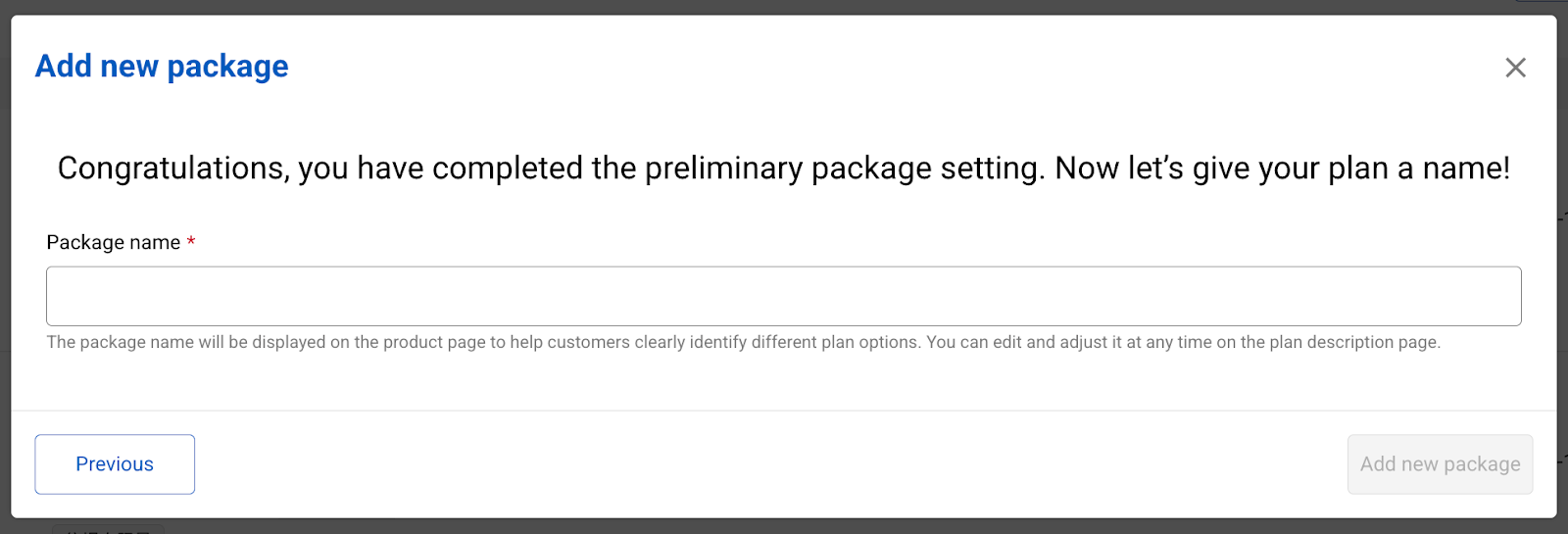
After confirming the selections for each question, you can proceed to the next step to name the package. Please note that once the [Add New Packages] button is clicked, the package will be created. If you need to change the questionnaire selections.

Please create a new package, as choices cannot be edited after the plan is created
New Version Package Editing Interface
After a package has been created, the system will open the relevant tabs and fields based on your settings, allowing you to fill them in one by one.
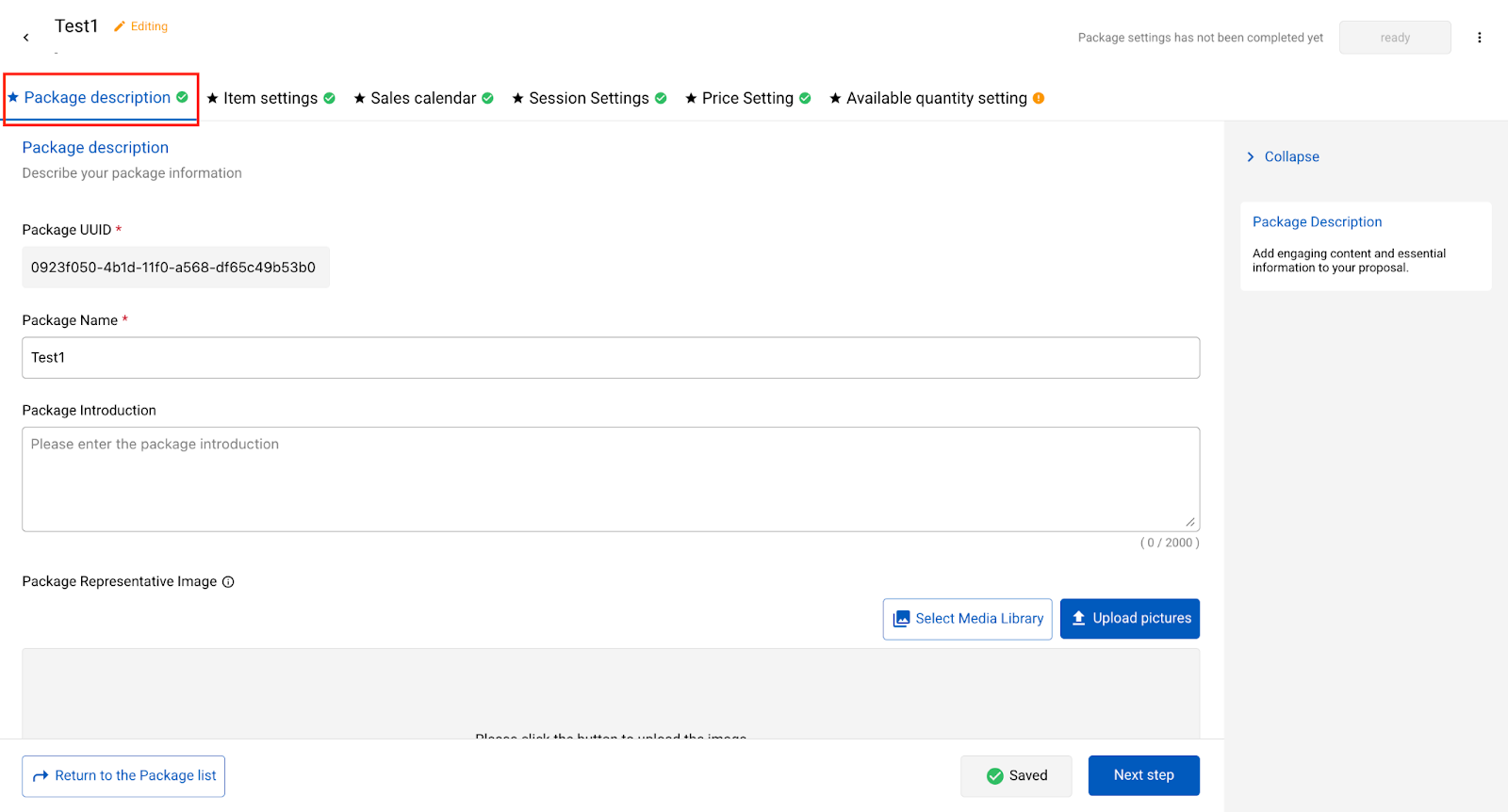
To help you better understand the purpose and limitations of each field, you can click the field name to view a tutorial on the right side of the screen, as shown in the red box in the image below:

After filling out each tab, first click Save, then click Next. Once the save is successful, a green checkmark will appear to the right of the tab.

Click the < button in the top-left corner, located to the left of the plan name, to return to the package list.

In case you find that the content is unsuitable while creating a package and need to start over, you can delete the incorrect plan.
In the top-right corner of the editing screen (to the right of the "Ready" button), click on the three dots. The "Delete Package" button will then appear.

Finally, please note that if you cannot see certain fields on the screen while editing, reduce your browser's display settings to get the best viewing experience.
Next, we will introduce the various settings and operating instructions provided by each tab, one by one.
Package Description
This page allows you to edit the package name, and add a package introduction and a package representative image.
 u set a package description and a representative image, this is how they will be displayed on the booking webpage. Customers can then click "Expand" to view the full plan description.
Desktop Version:

Mobile Version:

Item Settings
The Item Settings page will be based on the choices made in the questionnaire regarding [Selection purchasing unit presented] and [Whether they need to select specifications for bundled items]. If [Whether they need to select specifications for bundled items] is selected as [Yes] you can close or open individual bundled items on this page.
Select purchasing unit presented [By Person]+Requires bundled item specifications.
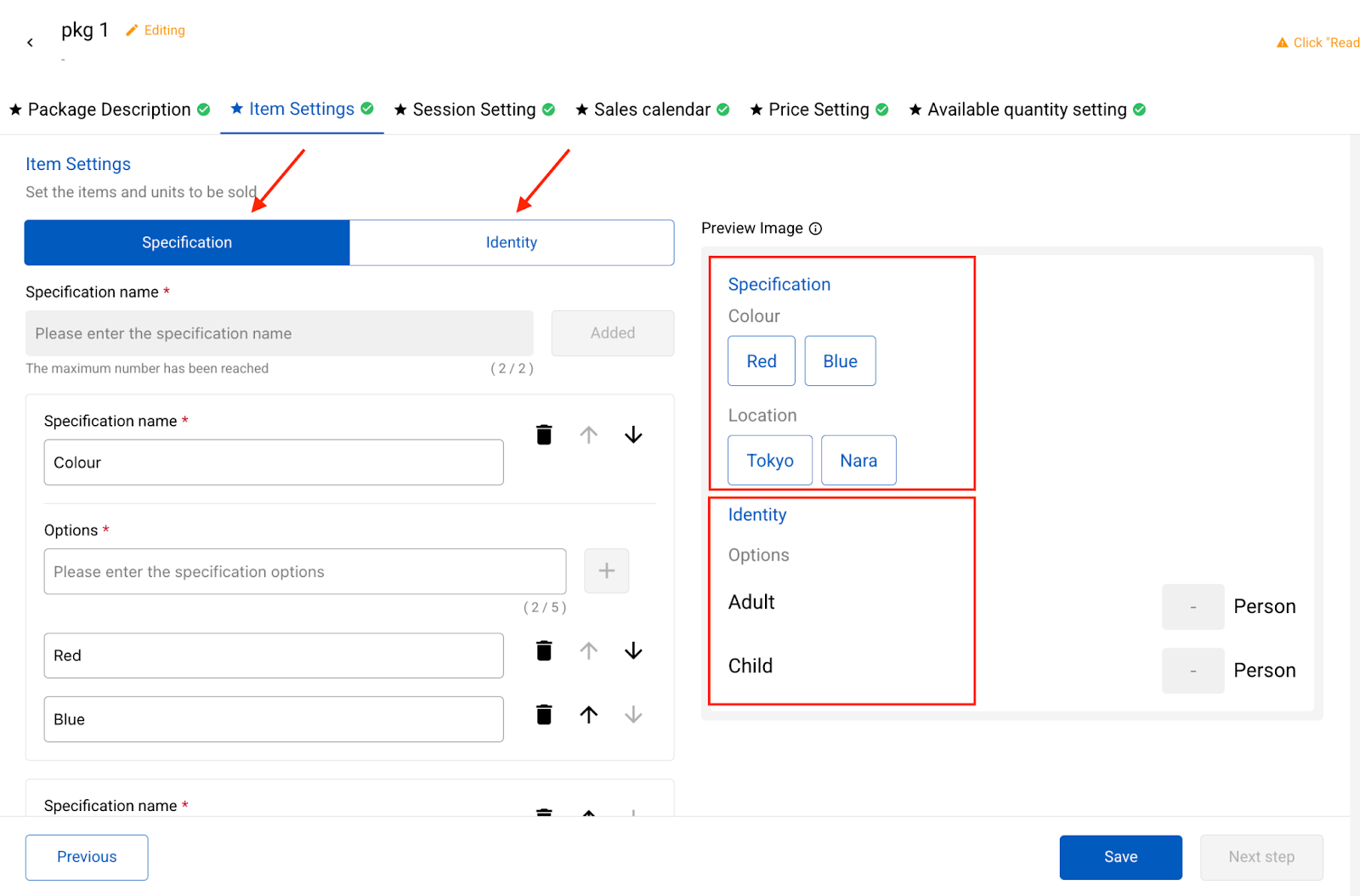
Please set the specifications and identity categories
- Specifications
You can create up to 2 specifications, and each specification can have up to 5 options. For example, the specification name can be [Vehicle Type] and options can be [5-seater] [7-seater] [9-seater]
- Identity
You can create up to 5 identity categories, and each identity category can have an additional description enabled.
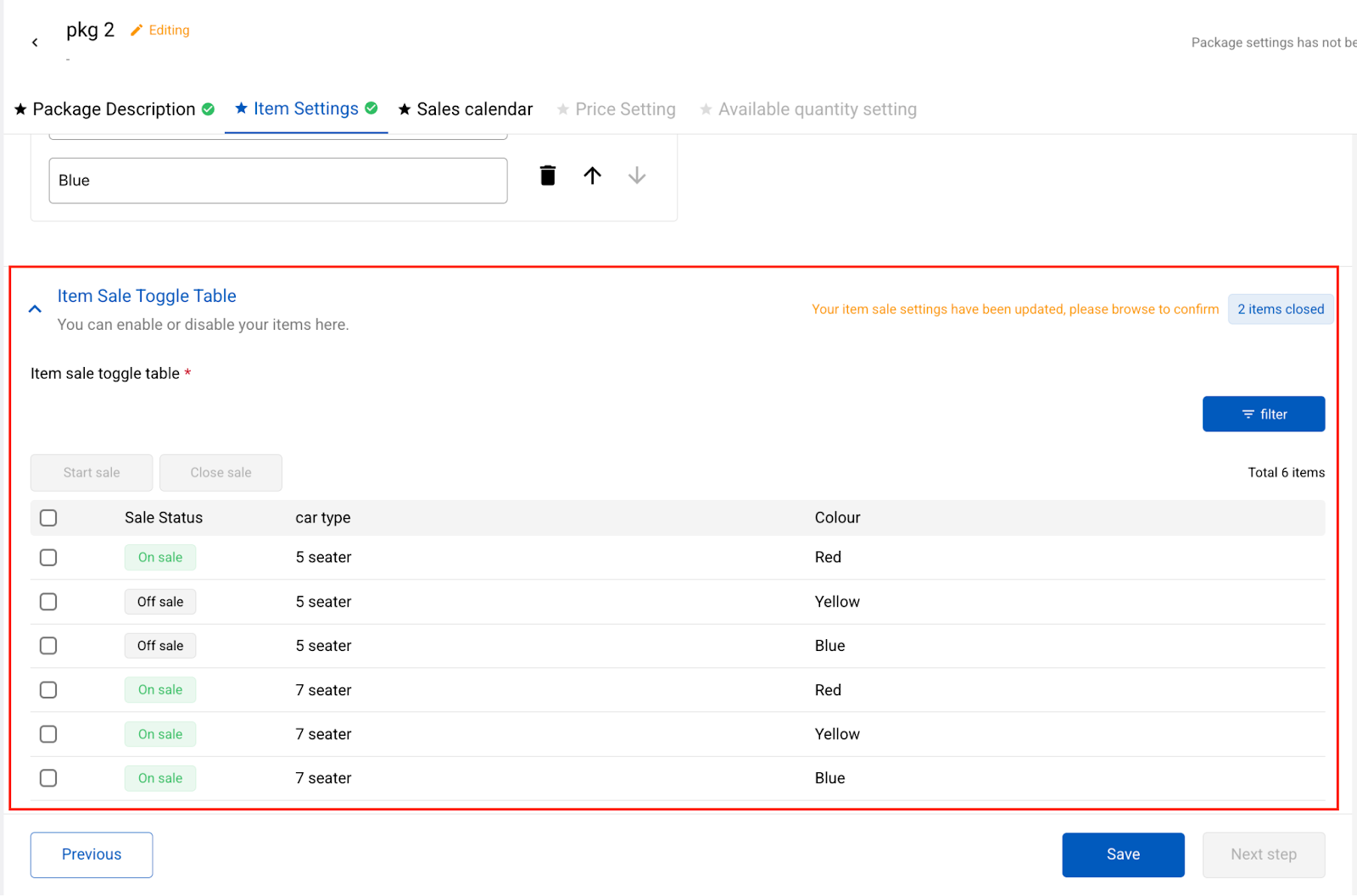
After creating specifications and identity categories, individual items can be independently closed or opened in the item sale toggles table below.
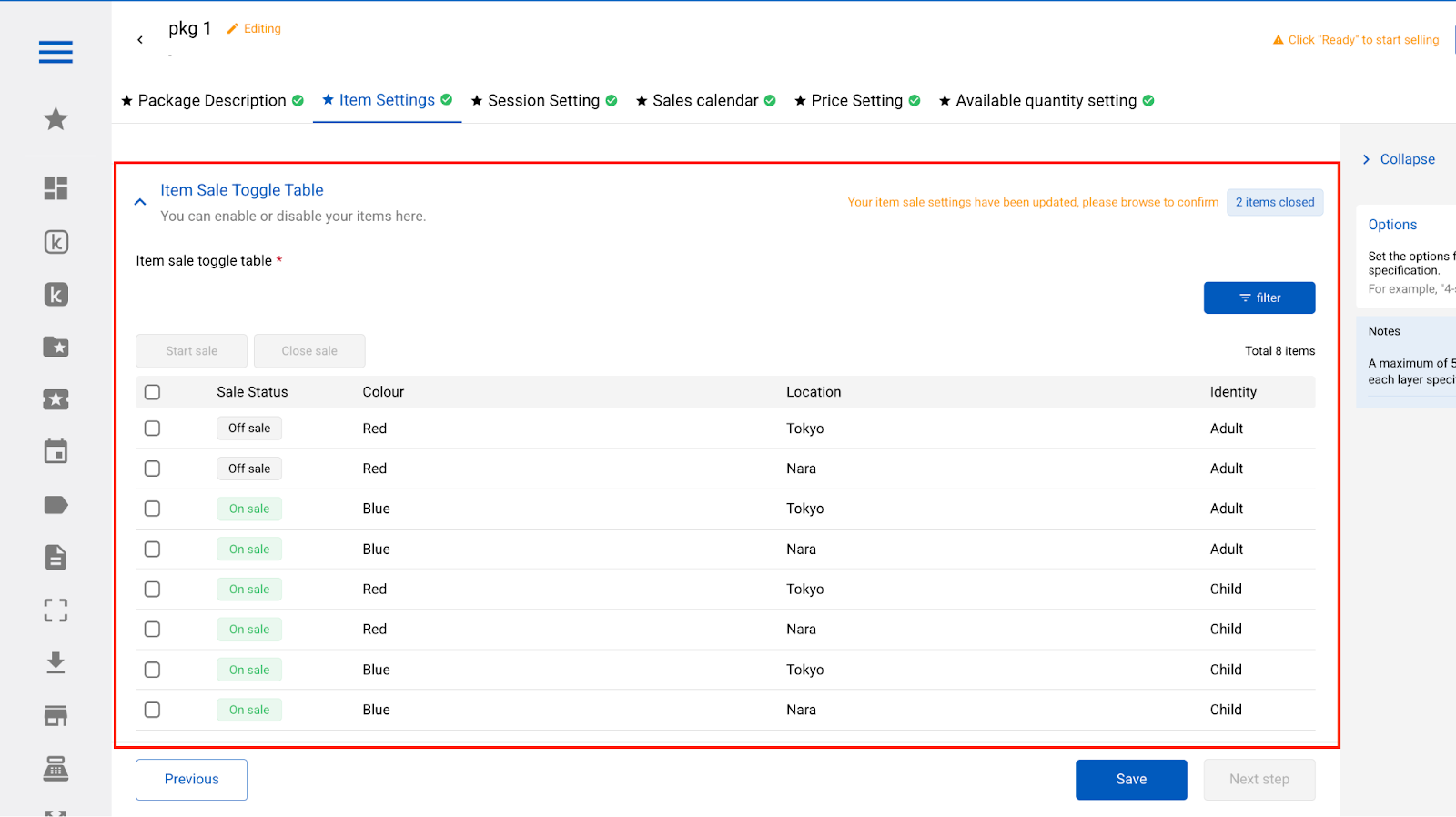
As shown in the example image, if the departure option from "Taipei City Area" does not offer "Five-Seater Sedan", you can close the sales for the Taipei City Area - Five-Seater Sedan - Adult and Taipei City Area - Five-Seater Sedan - Child options. Customers will then not see these two options when purchasing.

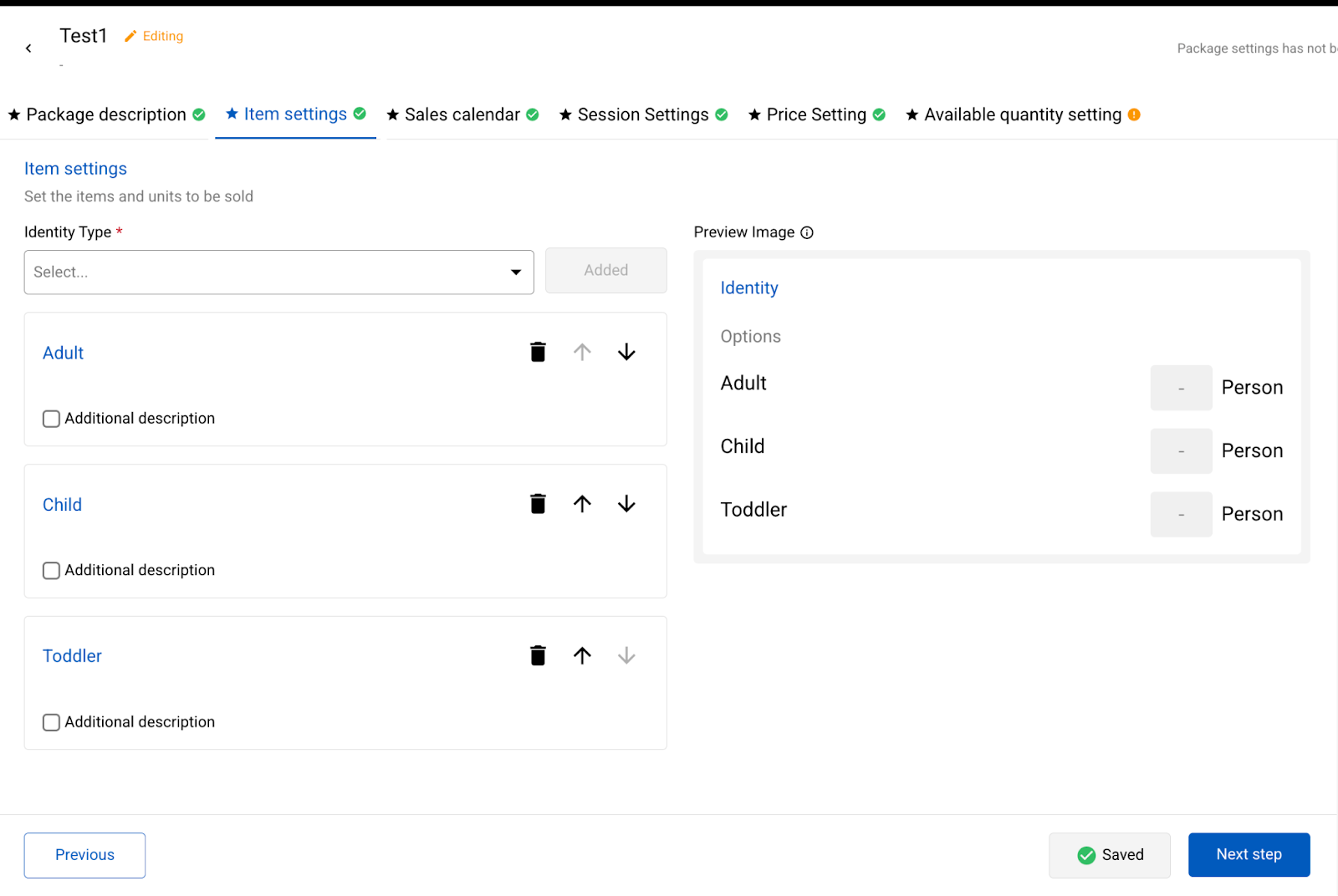
Select purchasing unit presented [By Person]+Not requires bundled item specifications
After selecting the identity category type to be added from the identity category type dropdown menu and clicking [Add] you can add the identity category. Each identity category can have an additional description enabled.
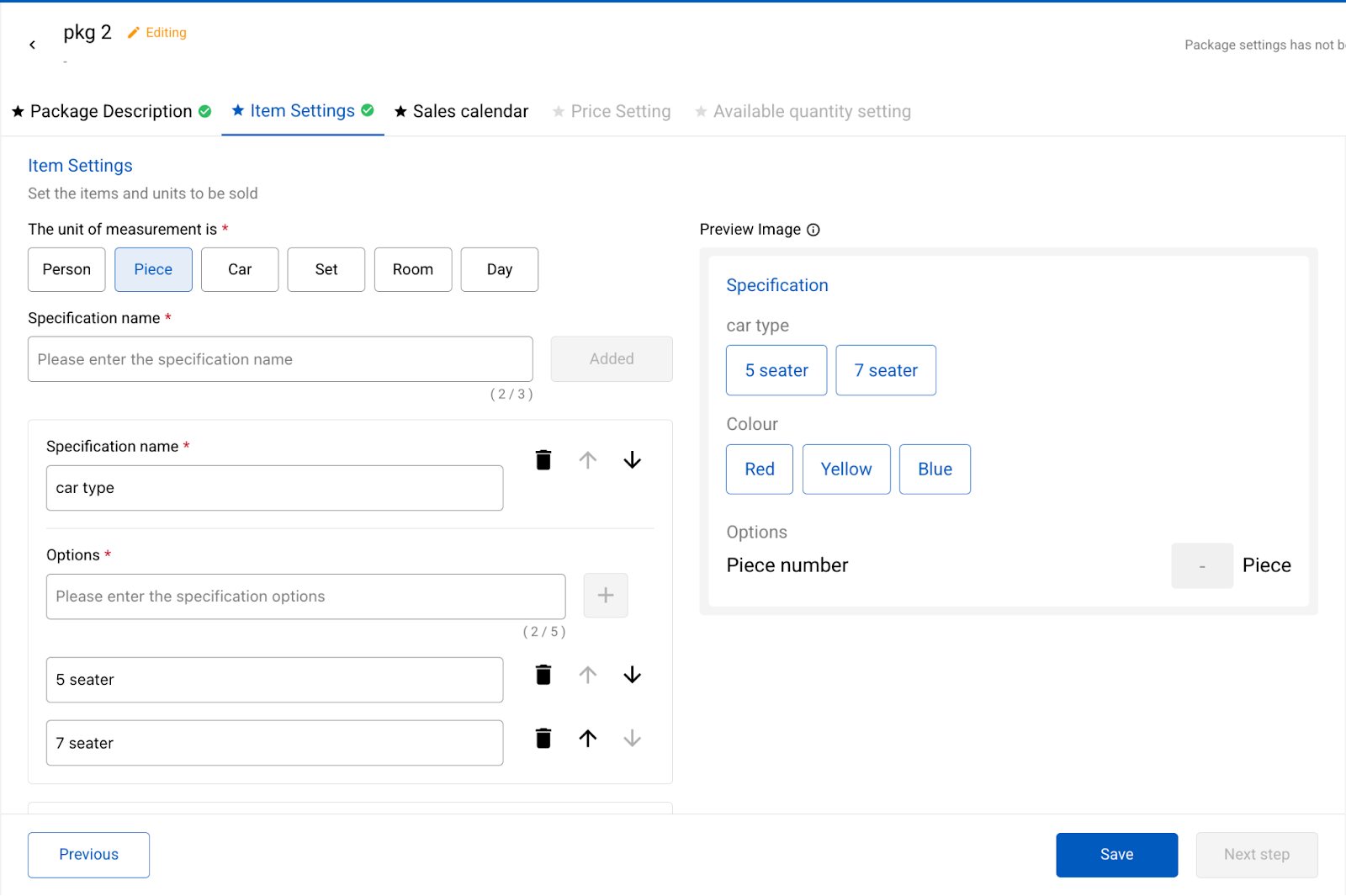
Select purchasing unit presented [Custom Unit]+Requires bundled item specifications.
You can create up to 3 specifications, and each specification can have up to 5 options. For example, specification names can be [Vehicle Type] [Color] Options for [Vehicle Type] can be [5-seater] [7-seater] [9-seater] options for [Color] can be [Red] [Yellow] [Blue]
After creating specifications, individual items can be independently closed or opened in the item sale toggles table below
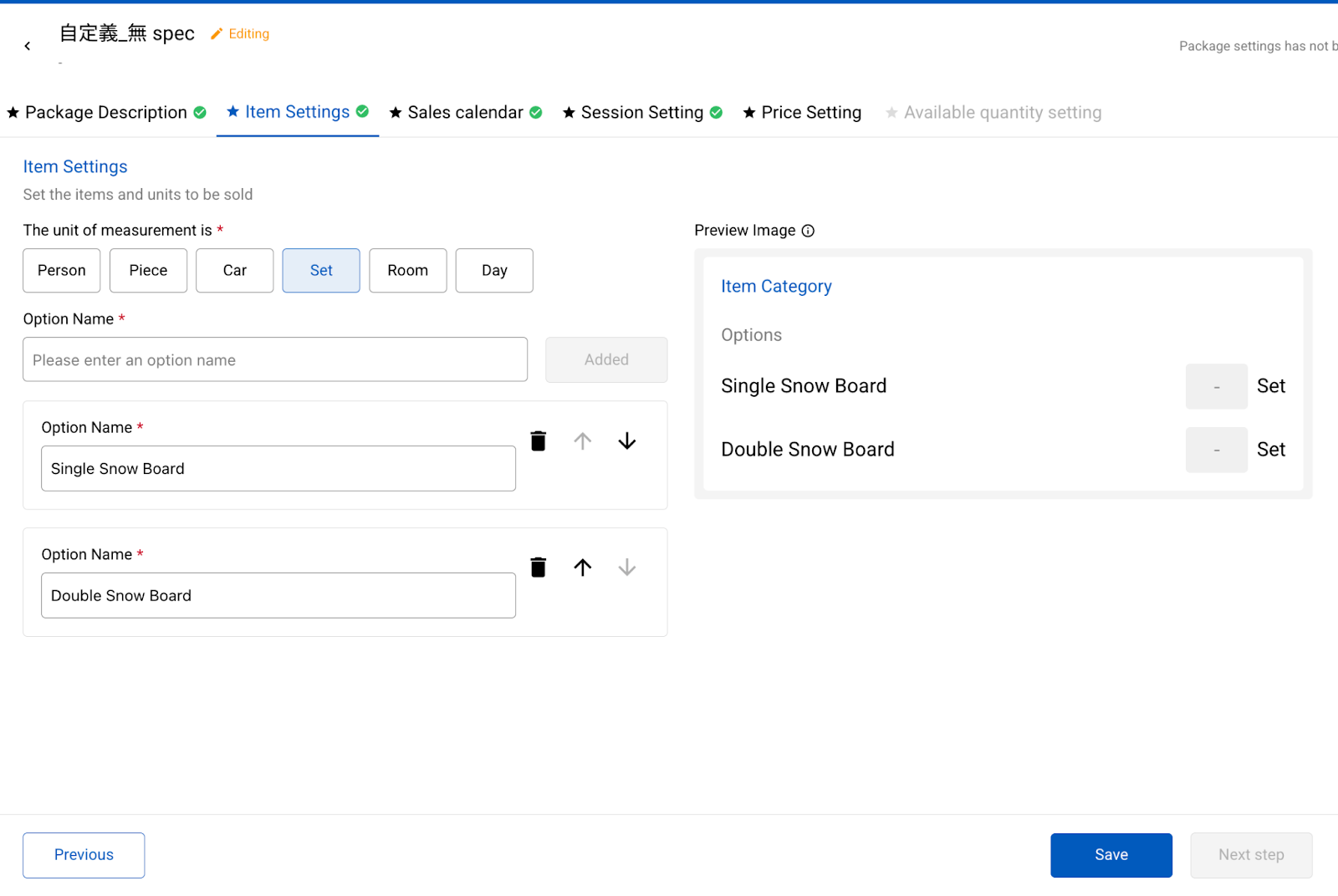
Select purchasing unit presented [Custom Unit]+Not requires bundled item specifications.
First choose the unit, then enter the option name.
Sales Calendar & Session Settings
The order of settings for these two tabs will vary depending on the choices you made initially in the package questionnaire. The following describes how to operate the various combinations, including:
- Held every week (fixed schedule), select departure date
- Held every week (fixed schedule), select departure date + time slot
- Held only on specific dates, select departure date
- Held only on specific dates, select departure date + time slot
Fixed Weekly Schedule
If your activity is Held every week (fixed schedule), you need to set up the Sales Calendar first, and then proceed to the Session Settings.
Step 1: Set up the Sales Calendar
You can set the saleable period, open appointment time, deadline for reservation, and exclude specific dates.
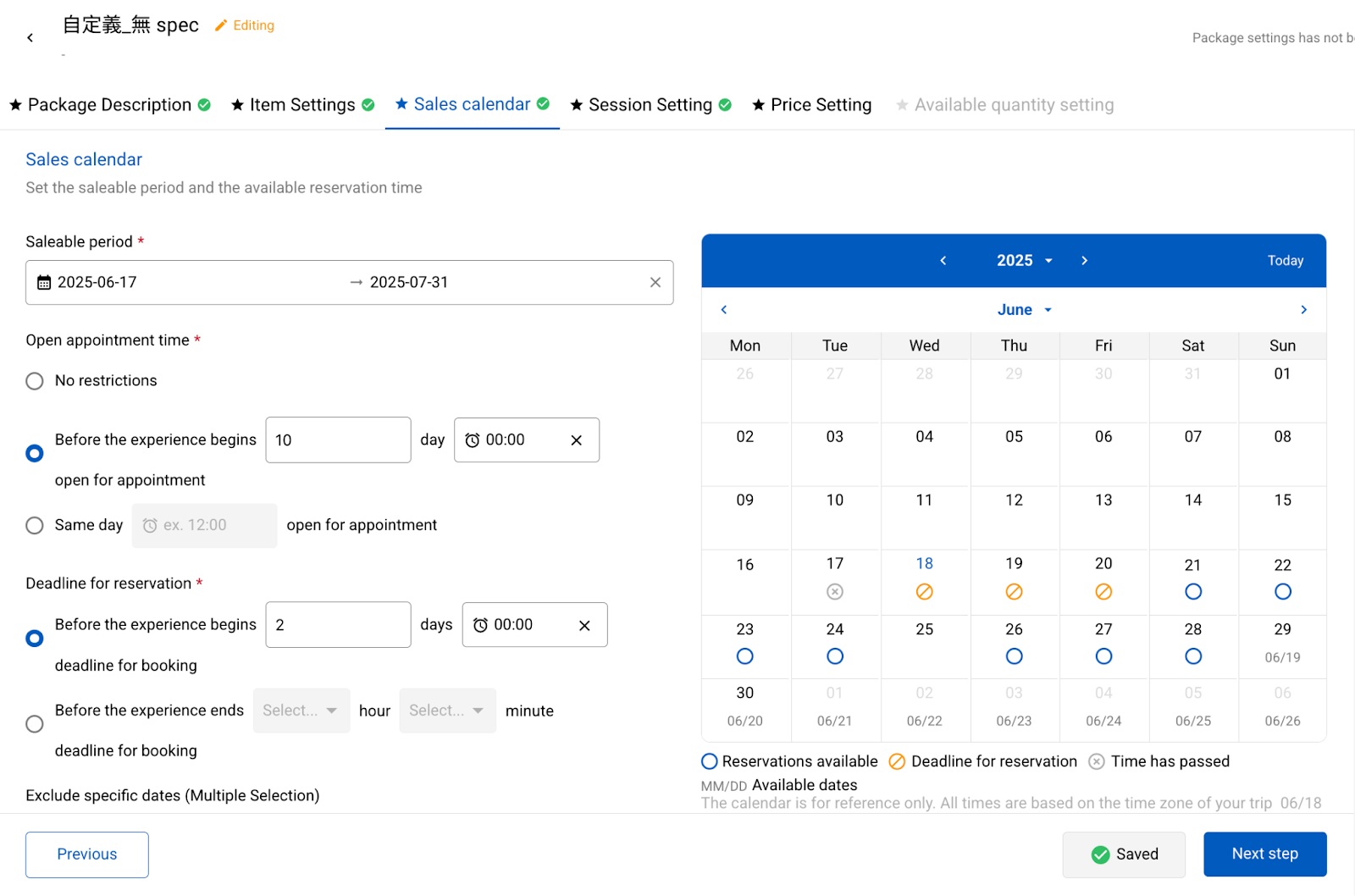
- Saleable Period:Sets the period during which the product can be sold, meaning when customers can book the product.
- Open Appointment Time:Affects how [long in advance] a session opens for booking, meaning how early customers can book your product.
- Deadline for Reservation:Affects how [long in advance] a session closes for booking, meaning when customers can no longer book your product
- Exclude Specific Dates:Which dates within the saleable period are not for sale. After excluding a date, customers will not be able to book the product on that day on the frontend.
When you are setting up, the diagram on the right will be based on the current time and will display the dates available for purchase to customers on the front-end. As shown in the example image, if the current time is 6:00 PM on 7/15, the right side will display the dates available for purchase at 6:00 PM on 7/15.

- Dates outside the available sales range will display as blank.
- Dates within the available sales range that are open for booking will display an O blue circle (Available for booking).
- Dates within the available sales range that have closed for booking will display an** ⊘ orange symbol** (Booking closed).
- Dates within the available sales range that are not yet open for booking will show which day that date will open for booking.
- Dates within the available sales range but where the time has passed will display an ⓧ gray symbol (Time passed).
Step 2: Set up the Sessions
If the customer only needs to select the "Departure Date" when purchasing the product, you only need to set which day of the week the session will be held regularly.
After clicking the days from Monday to Sunday, you will see the corresponding boxes in the diagram on the right turn blue. Then, press [Save] at the bottom to complete the session settings.

If the customer needs to select [Departure Date + Time Slot] when purchasing, you will need to set the time slots for the sessions.
- Add Sessions
- Weekly: Select which day(s) of the week your session is held regularly.
- Session Division: You can add sessions using two methods: "Add Custom Time Slots" or "Add Regular Time Slots".
Add Custom Time Slots: This method is suitable for products with a small number of sessions or sessions with varying start times or lengths. You first need to select the session duration, then add the session's start time (multiple times can be added at once). Finally, press [Create Session], and you will see a session preview in the diagram on the right.

Add Regular Time Slots: This method is suitable for products with a large number of sessions or sessions where the start time or length is regular.
You only need to enter the start time of the first session, how long after the start until the next session, how long the session lasts, and how many sessions there are per day. Finally, press [Create Session] to batch create many sessions and display a preview on the right.
 hese two methods are only different in operation; you can mix and match them based on your actual session times and quantity. For complex session rules, you can also perform the setup in multiple steps, with the results displayed in the diagram on the right.
In the diagram, each blue box represents one session. The first line shows the session time, and the second line shows the duration. Note that all boxes are the same size, regardless of session length.

As shown in the example image, you can first use the [Regular Time Slots] method to create most of the sessions for Monday through Sunday, and then use [Custom Time Slots] to set up additional time slots for the weekend.

After completing the settings, remember to click [Save] to actually complete the action of adding the sessions.
- Edit and Delete Sessions
After clicking [Edit and Delete], the calendar on the right will switch to Edit Mode, allowing you to select the sessions you want to adjust for editing or deletion.

Only on Specific Dates, only select Departure Date
If your activity is [Held only on specific dates], and the customer only needs to select the departure date, you only need to set the Sales Calendar.
Step 1. Set up Sales Calendar
You can set the available sales range, booking open time, and booking cut-off time. As you make your settings, the diagram on the right will be based on the current time and will display the dates available for purchase to customers on the front-end.
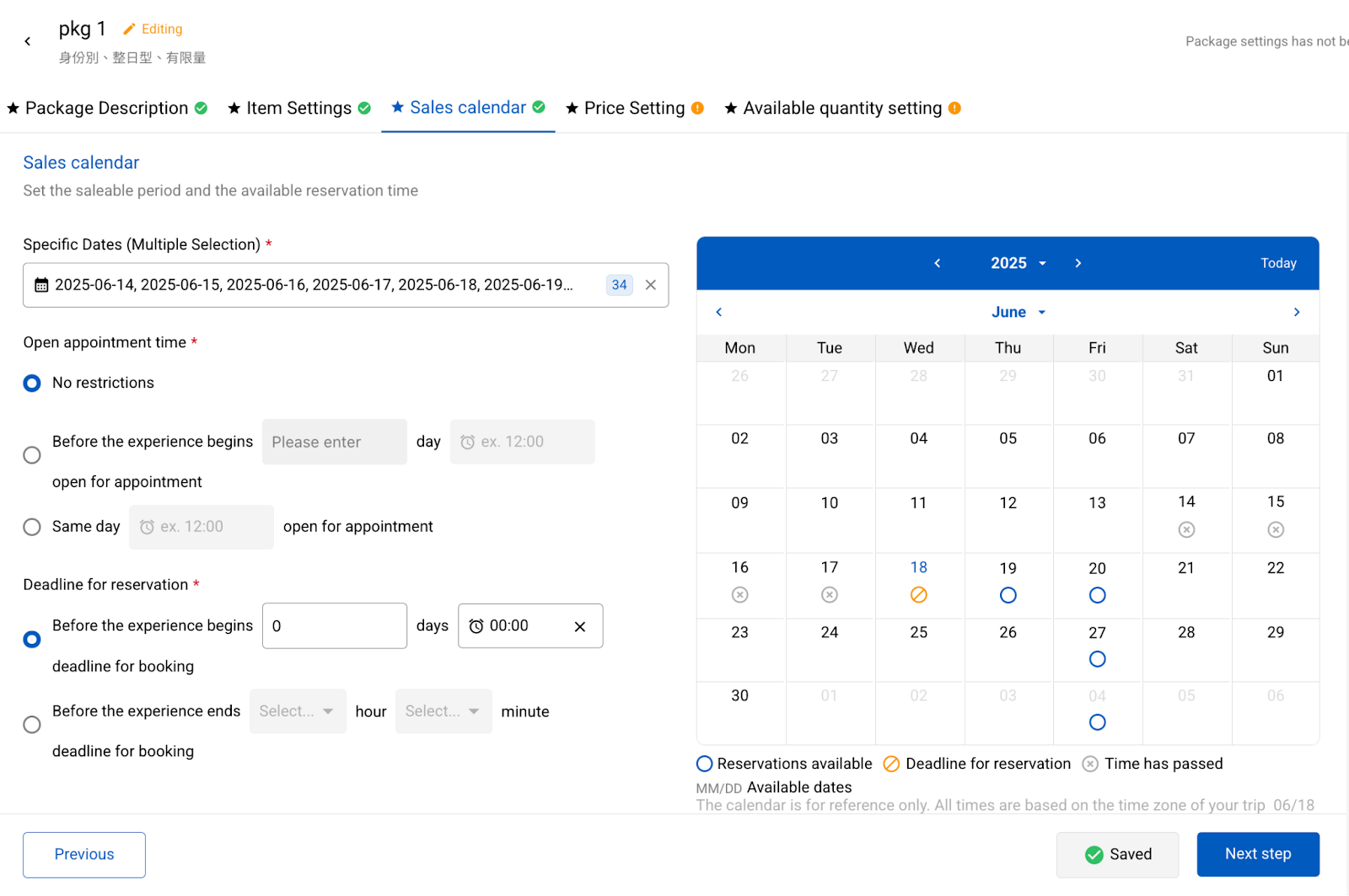
- Specific Dates: Select the dates you want to sell.
- Open Appointment Time: Affects how "long in advance" a session opens for booking, meaning how early customers can book your product.
- Deadline for Reservation: Affects how "long in advance" a session closes for booking, meaning when customers can no longer book your product.
Only on Specific Dates + Select Departure Date + Time
If your activity is [Held only on specific dates] and the customer needs to select the departure date + time slot, you will need to complete the Session Settings first, and then set the Sales Calendar.
Step 1. Session Settings
- Add New Session
- Specific Dates:Select which specific dates the activity will be held on.
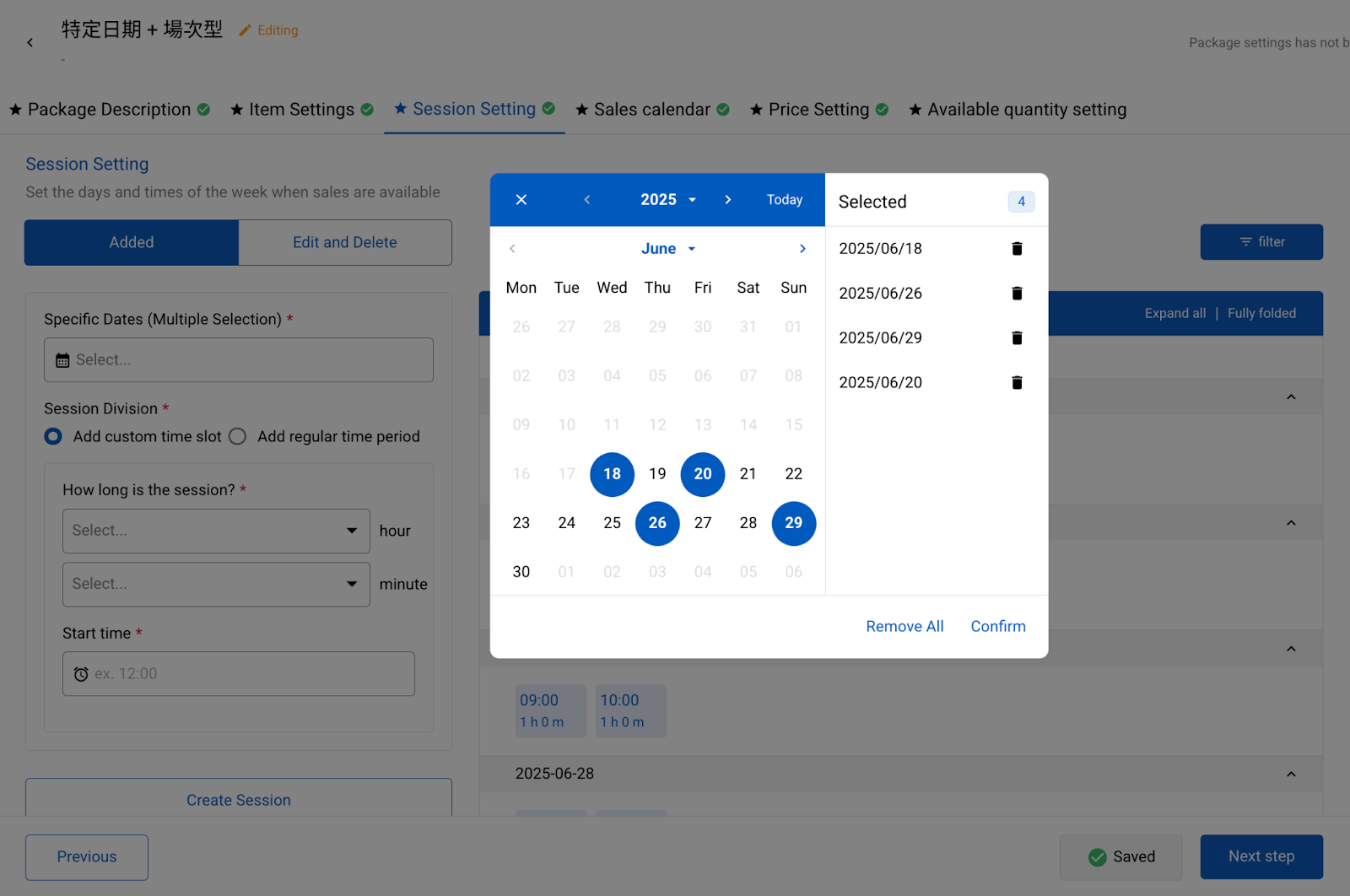
- Session Division:You can add sessions using either [Add Custom Time Slot] or [Add Regular Time Period]
Add Session Time Slot: This method is suitable for products with few sessions per day and variable session durations. First, select the session duration, then add the session start times (multiple can be added at once). After clicking "Add," you can see the sessions in the diagram on the right.

Add Regular Session: This method is suitable for products with many sessions per day and consistent session durations. You only need to enter the start time of the first session, how long after the first session the next one is, how long the session duration is, and how many sessions there are per day. Multiple sessions can be created in bulk.

These two methods only differ in terms of operation. You can mix and match them according to the actual session times and quantity. If your session rules are complex, you can also perform the operation in multiple steps, and the results of each setting will be displayed in the diagram on the right.
Here, each specific date will display all sessions for that day as a horizontal row. Each blue box represents one session, with the first line showing the session time, and the second line showing the session length.

When there is a large number of session dates, you can also expand or collapse specific dates, or use the filter in the upper right corner to view the session settings for a specific time.
Once you confirm that the session settings are correct, remember to click [Save] to actually complete the action of adding the sessions.
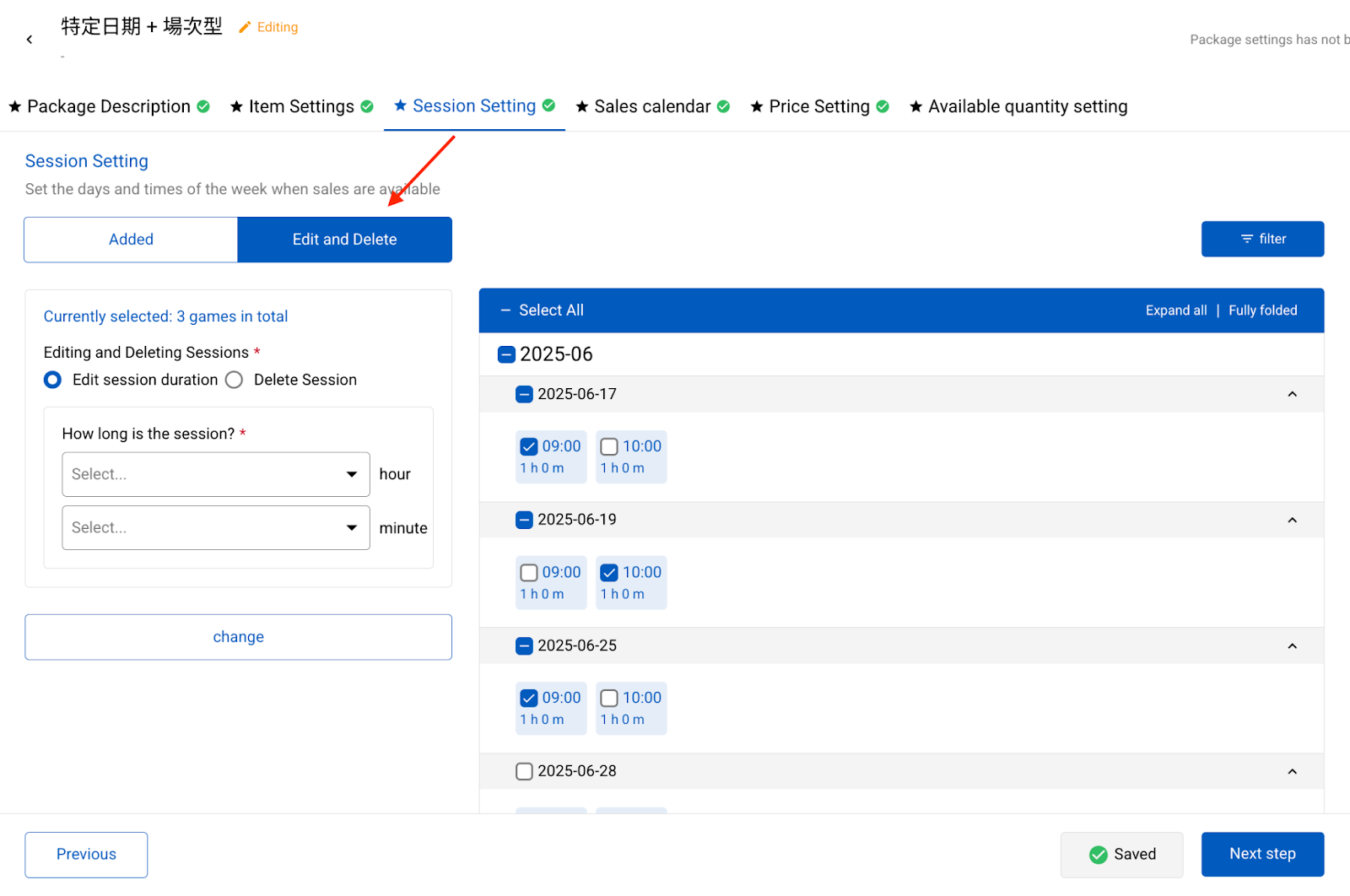
- **Edit and Delete Session **
- After clicking [Edit and Delete] the calendar on the right will switch to editing mode, where you can select sessions to edit or delete.
Step 2. Sales Calendar Settings
Since you have already set the session dates in the previous step, if you wish to modify the dates, please click [Previous Step] to go back to the Session Settings page and make changes.
Here, you can set the time window available for customers to purchase. The result of your setting will be displayed in the diagram on the right (based on the current time).
- Booking Open Time: Affects "how long in advance" a session is open for booking, meaning how early customers can reserve your product.
- Booking Cut-off Time: Affects "how long before" a session the booking closes, meaning when customers can no longer reserve your product.
Price Settings
Please set the default price first. After saving, if you need to set special prices, please click [Add] in the upper left corner to create special prices.
Price Settings - Default Price
You can directly enter the selling price for each identity type/item.

By checking [Customized Original Price] and [Customized Cost Price], **you can **enable the corresponding fields. These two fields are not required. If you do not enable them, the system will default them to be [the same as the selling price].

- Customized Original Price
After entering the original price, you can create a discount effect on your My Booking Website. For example, if the original price is USD $10 and the selling price is USD $8, the My Booking Website will display a 20% OFF discount effect.
- Customized Cost Price
When "Customized Cost Price" is checked, a "Cost Price" input field will appear in the price input form below

After completing the settings, click [Save]. Next, you can choose to create Special Prices or Package Promotional Prices as needed, or click [Next Step] to continue.
Price Settings - Special Price
If you want to achieve differentiated pricing with [different sessions, different prices] you can click [Add] in the upper left corner. At this point, you can name this special price and select which sessions to apply it to.

After clicking [Next] the special price appears in the left menu. The top-right icon shows applied session time slots, and the bottom-right displays its settings. (Setup is similar to default pricing.)

To view all session price distributions, click the left menu selector again to [Deselect] status to see which pricing rules are applied to each session on the right.
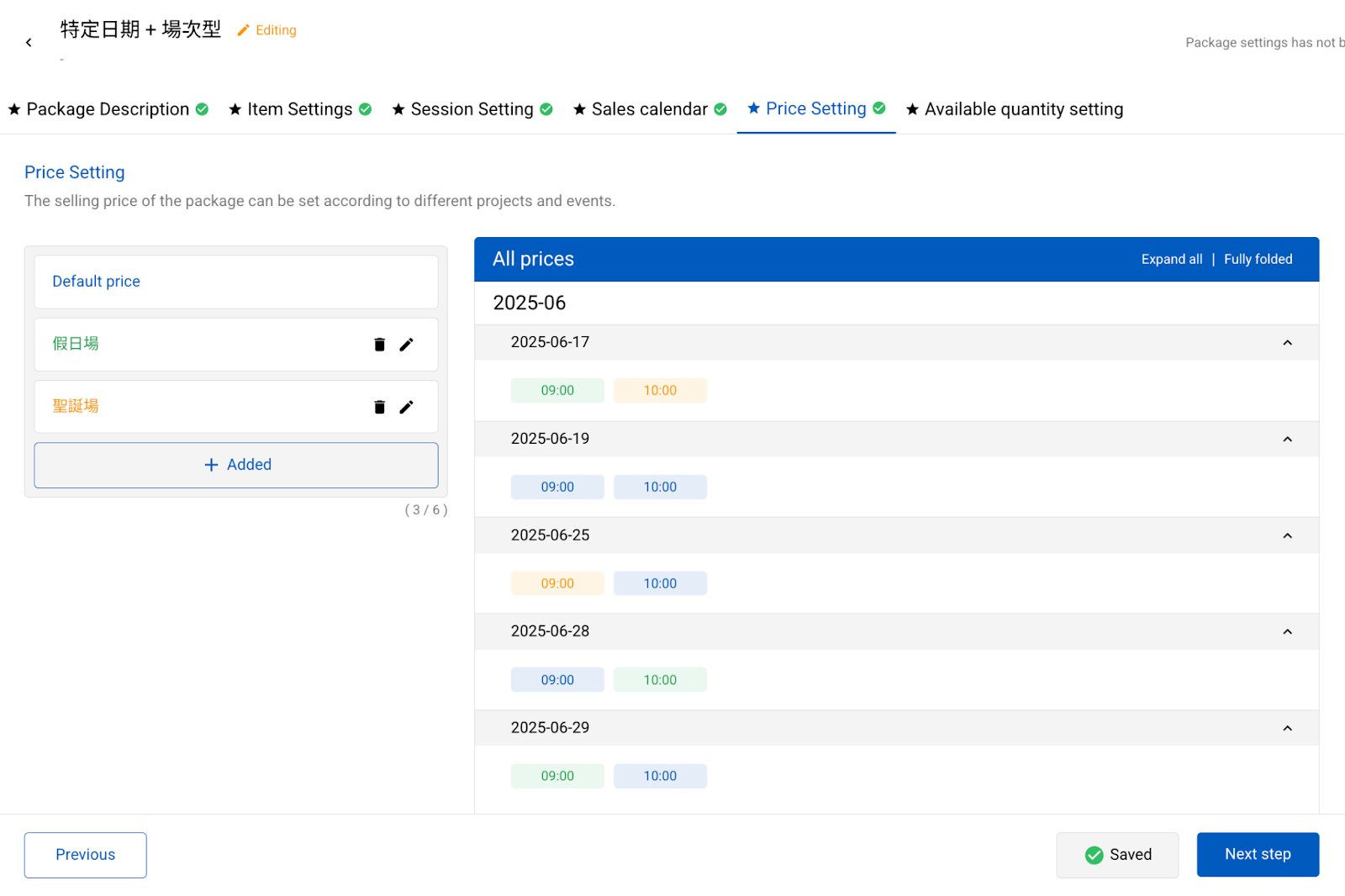
The complete operation demonstration is shown in the figure below:

- [Purchasing Unit] Identity
If there is [Person], it takes the lowest price among [Person]; if there is [Adult], it takes the lowest price among [Adult]; if there is no [Adult], it takes the lowest price among all identity categories.
- [Purchasing Unit] Item Specification
Takes the lowest price among all items.
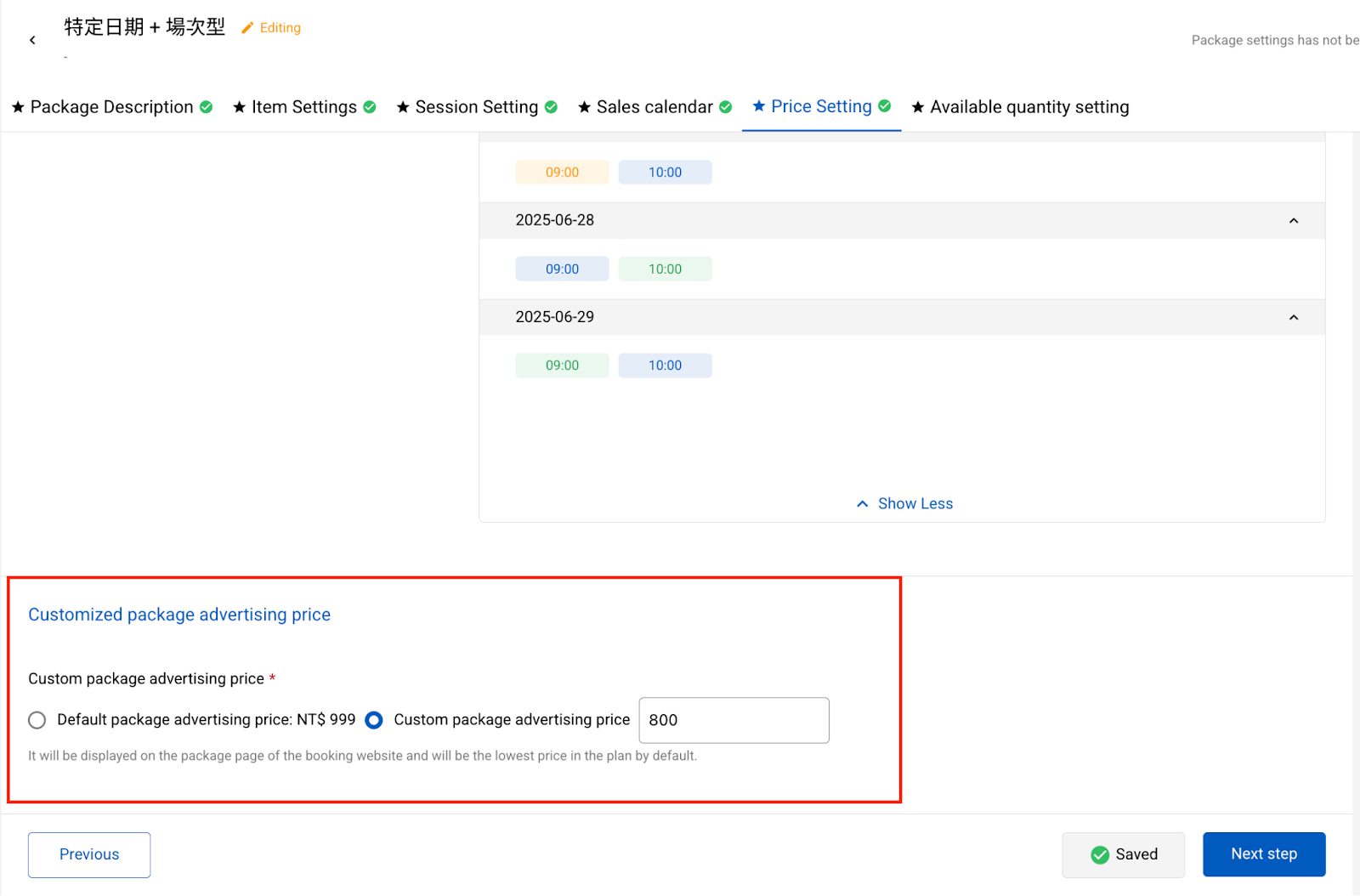
Available Quantity Settings
The final step in the package settings is to set the quantity to be sold, as well as limits such as the minimum/maximum order quantity per order.
Quantity Restrictions
The quantity limit will have different settings based on the answer to the questionnaire [Does your product have a quantity limit?]
- Product has unlimited quantity
At quantity limit field will display The available sales volume of the package is: unlimited
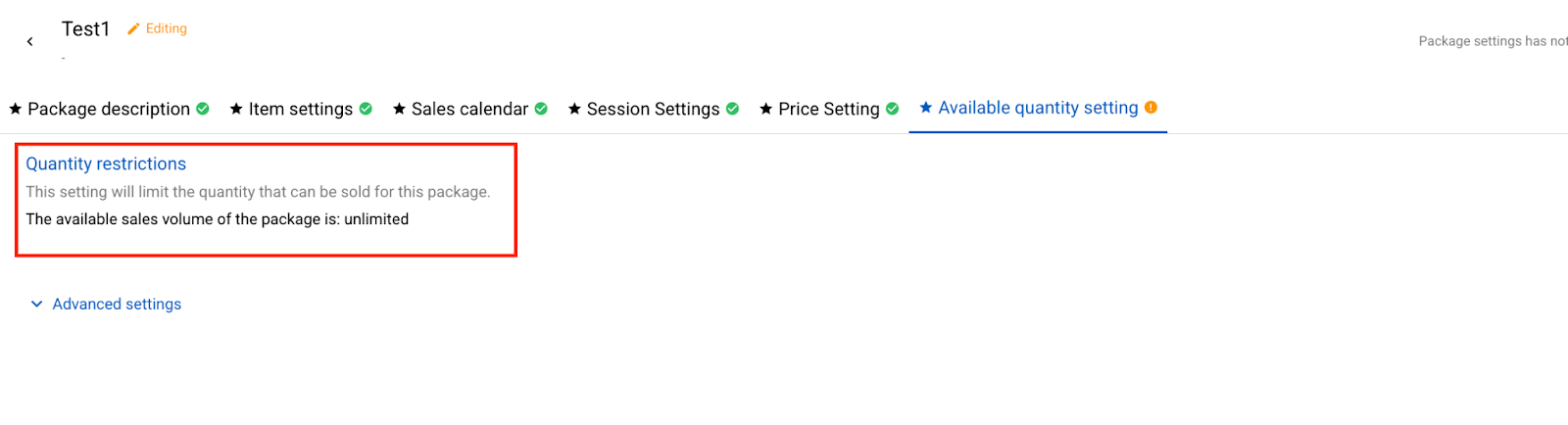
- Product has quantity limit, and each session have its own quantity limit
At quantity limit field will display The available sales volume of the package is: limited number of sessions
For example, if each session has 5 units of inventory to sell, please enter 5 as the amount that can be sold in a single event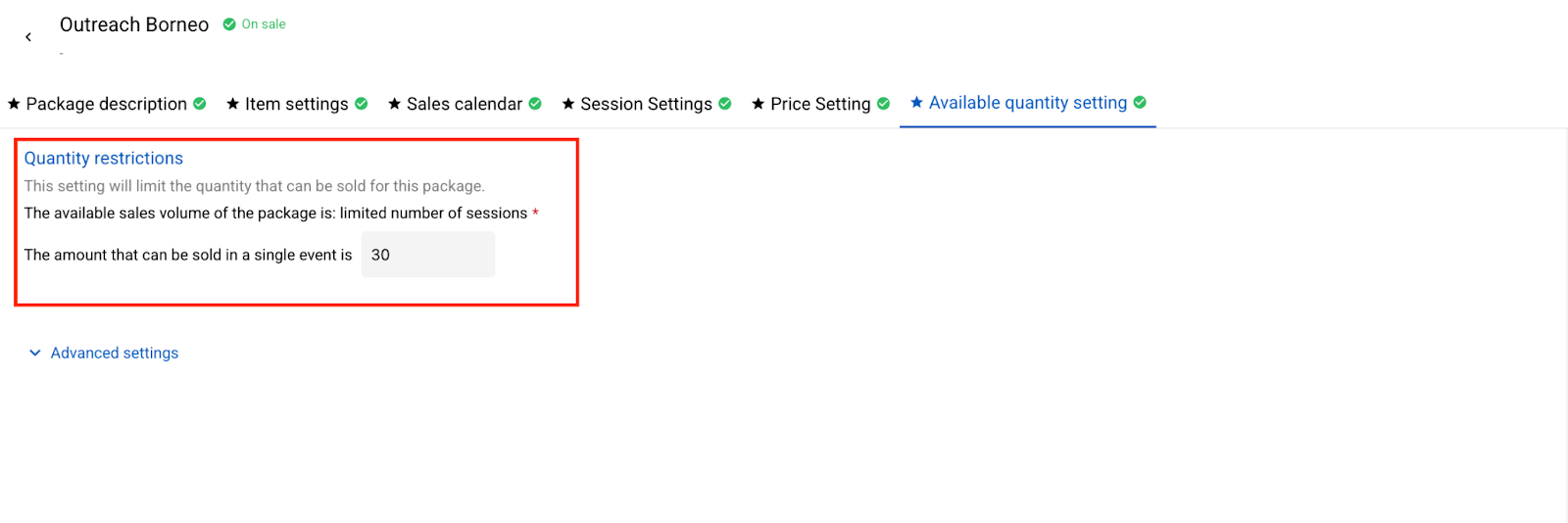
- Product has quantity limit, and all session have its share same quantity limit
At quantity limit field will display The available sales volume of the package is: limited number of package
For example, if there are a total of 5 sessions, and the 5 sessions share 10 units of inventory, please enter 10 as the total available quantity for the plan.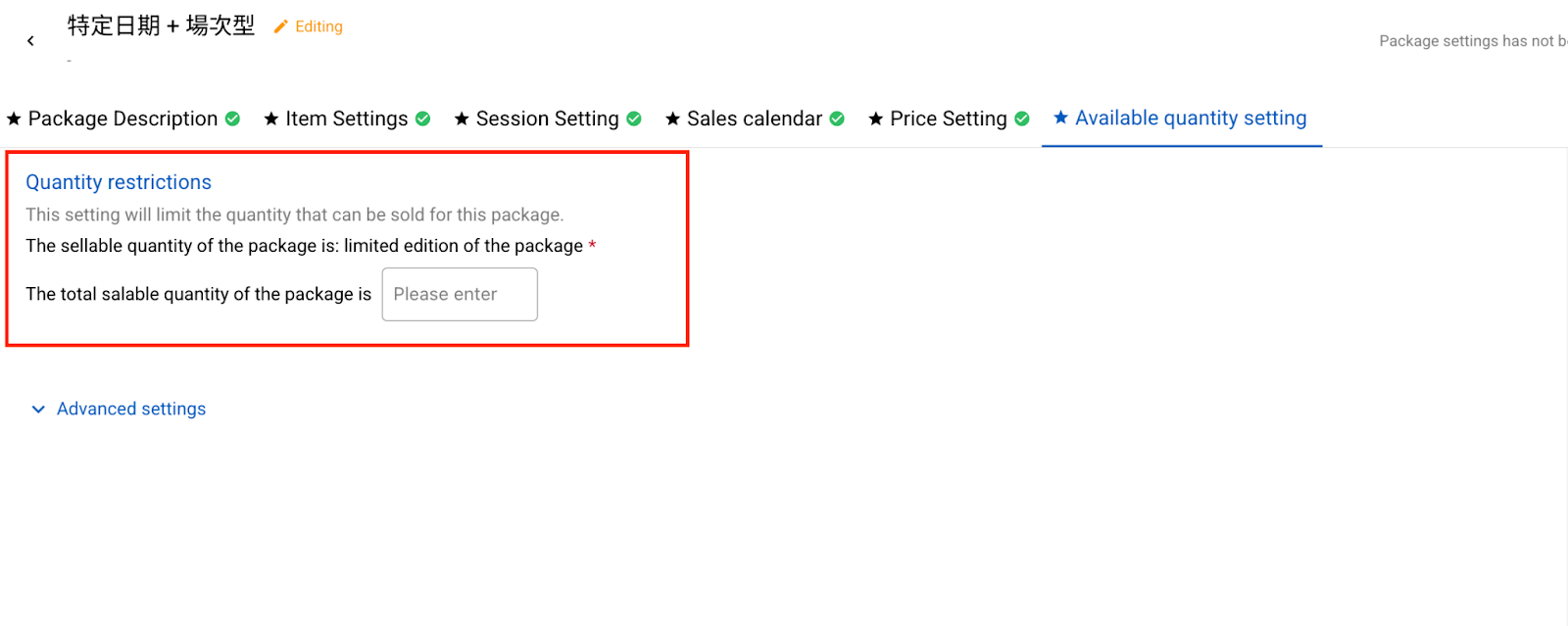
Advanced Settings
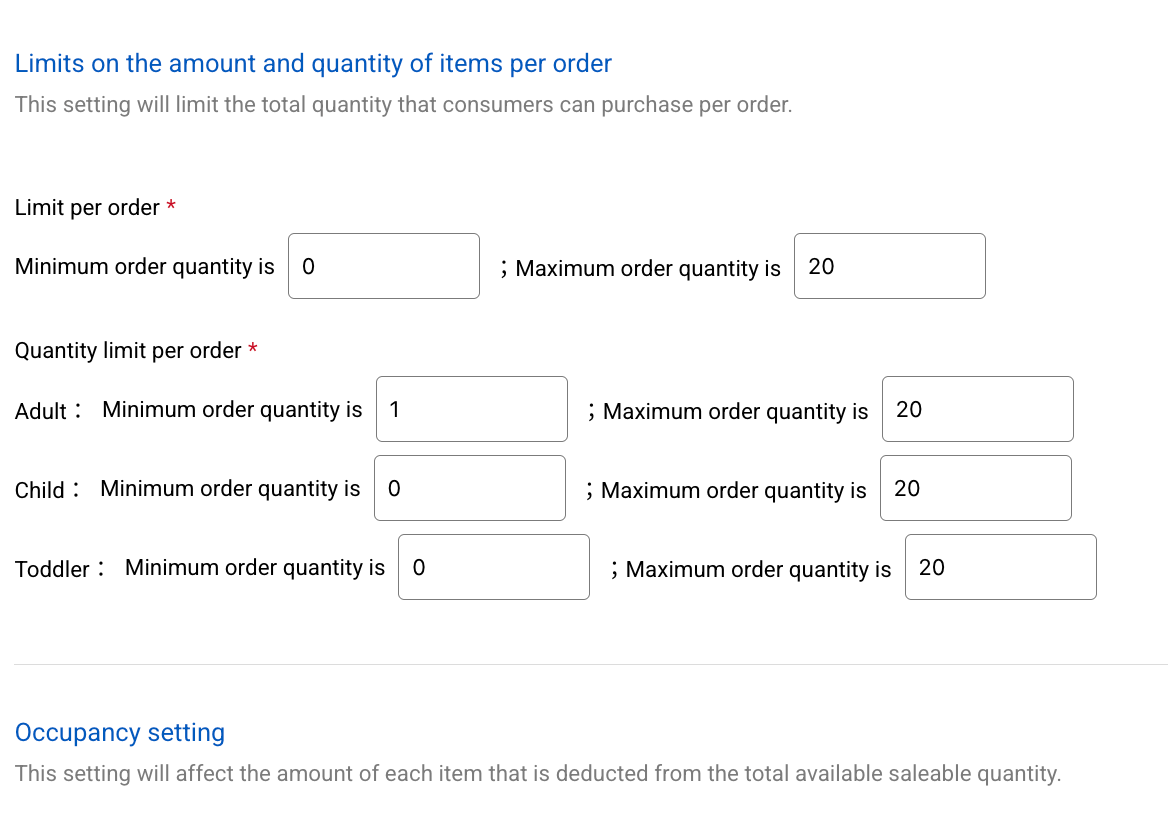
- Limits on the amount and quantity of items per order: You can set the upper and lower limits for the total quantity of all items ordered in a single order.
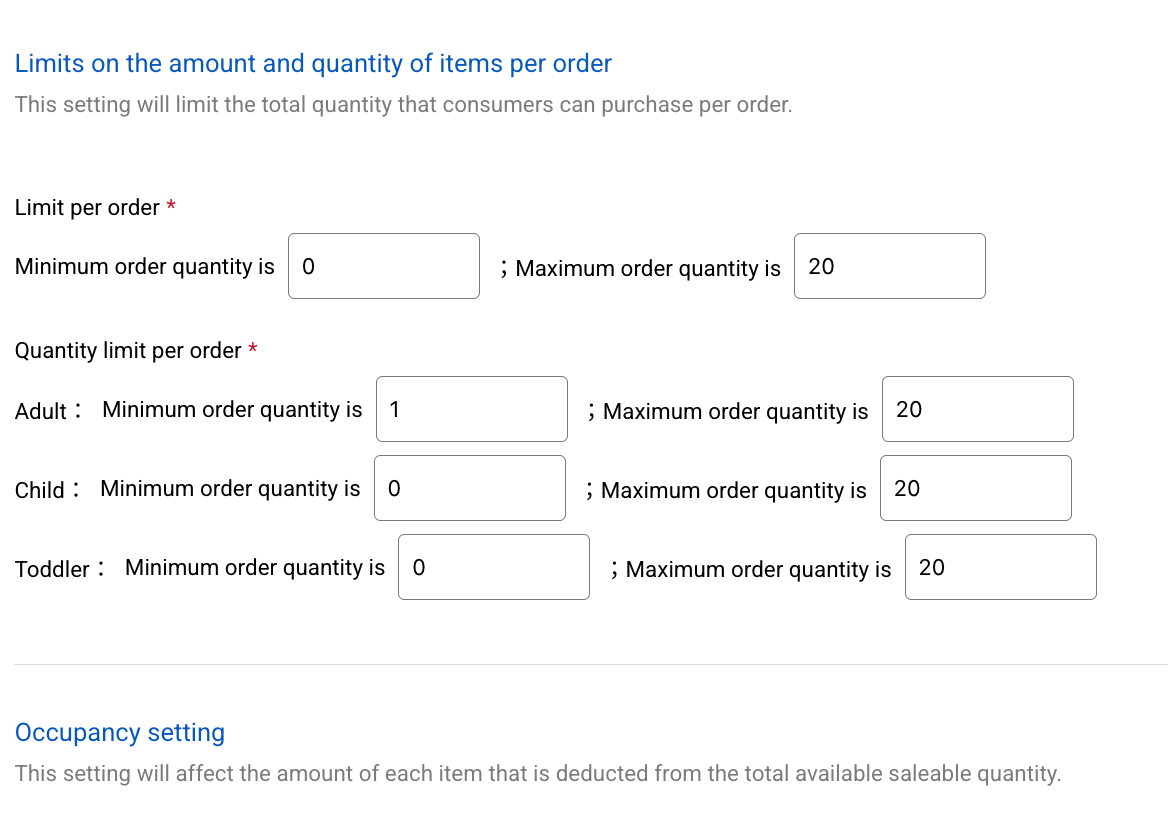
- Limits on the amount and quantity of identities per order: You can set the upper and lower quantity limits for individual identity categories.
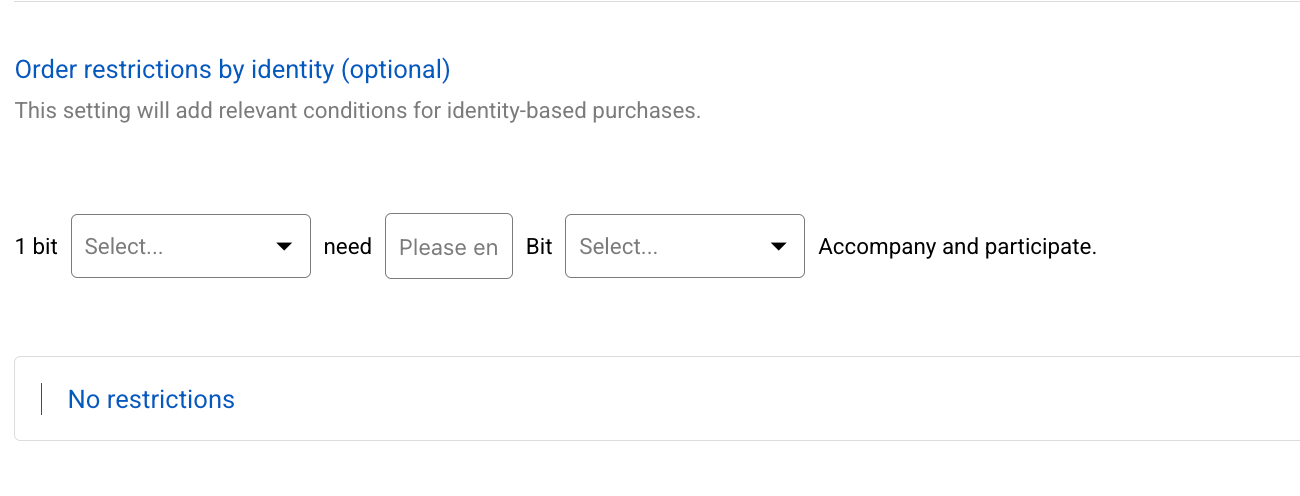
- Order restrictions by identity: If a package has multiple options, you can further set quantity restrictions on combinations between options
- Resources:If this product has linked resources, such as tour buses, special equipment, etc., you can set them here. If there are no resource configurations, you can skip this. For detailed new addition instructions, please refer to the Admin Settings|Resource Management

Publish Package
Once you have completed all pages in the plan settings, you can publish the package!
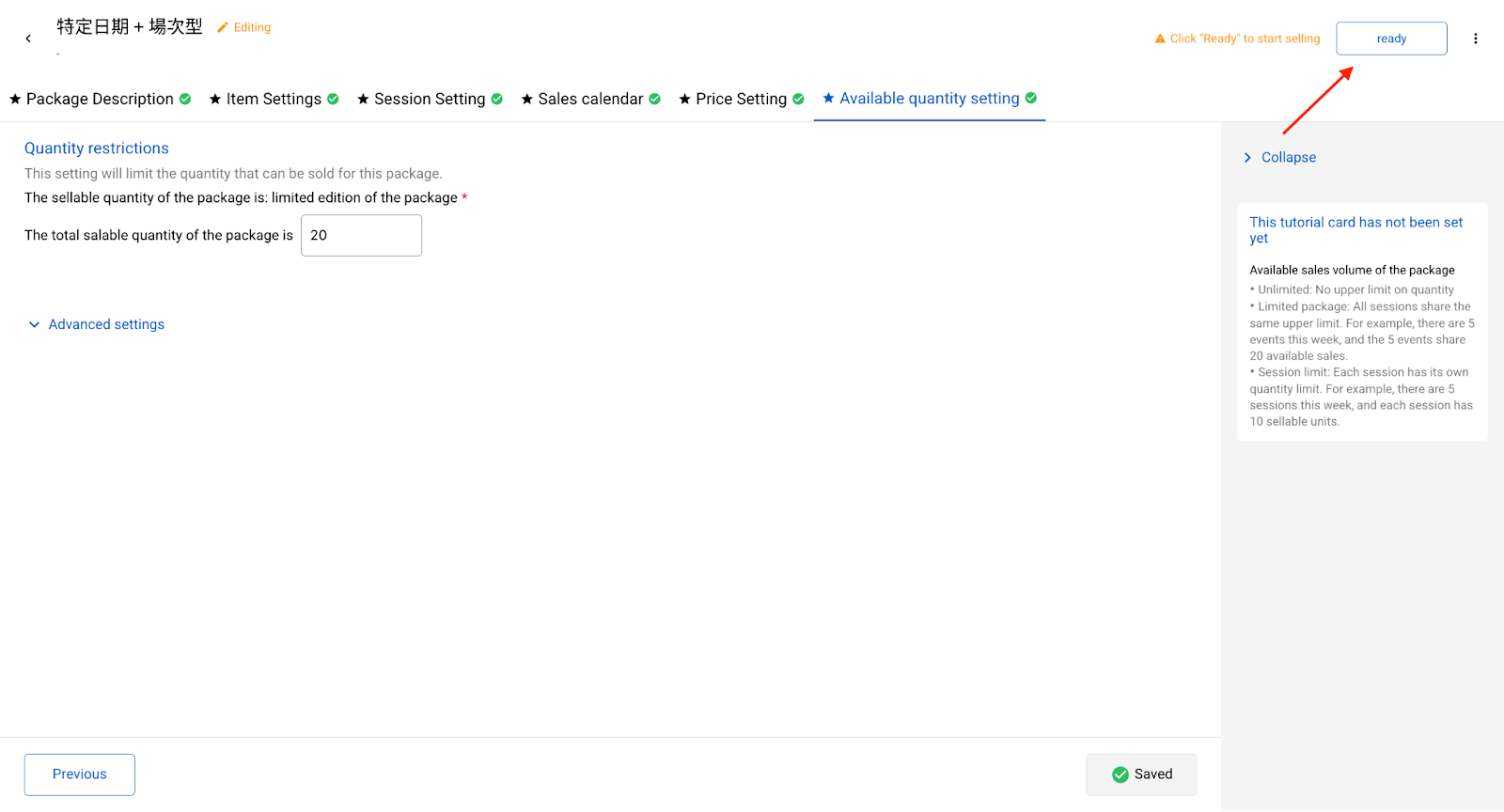
Click [Ready] in the upper right corner to change the plan status to [On Sale] When your package status is [Available for Sale] the [On Sale] package can then be sold.
If you want to delist a plan, click [Sales Suspended] and the plan will no longer appear on the sales page.
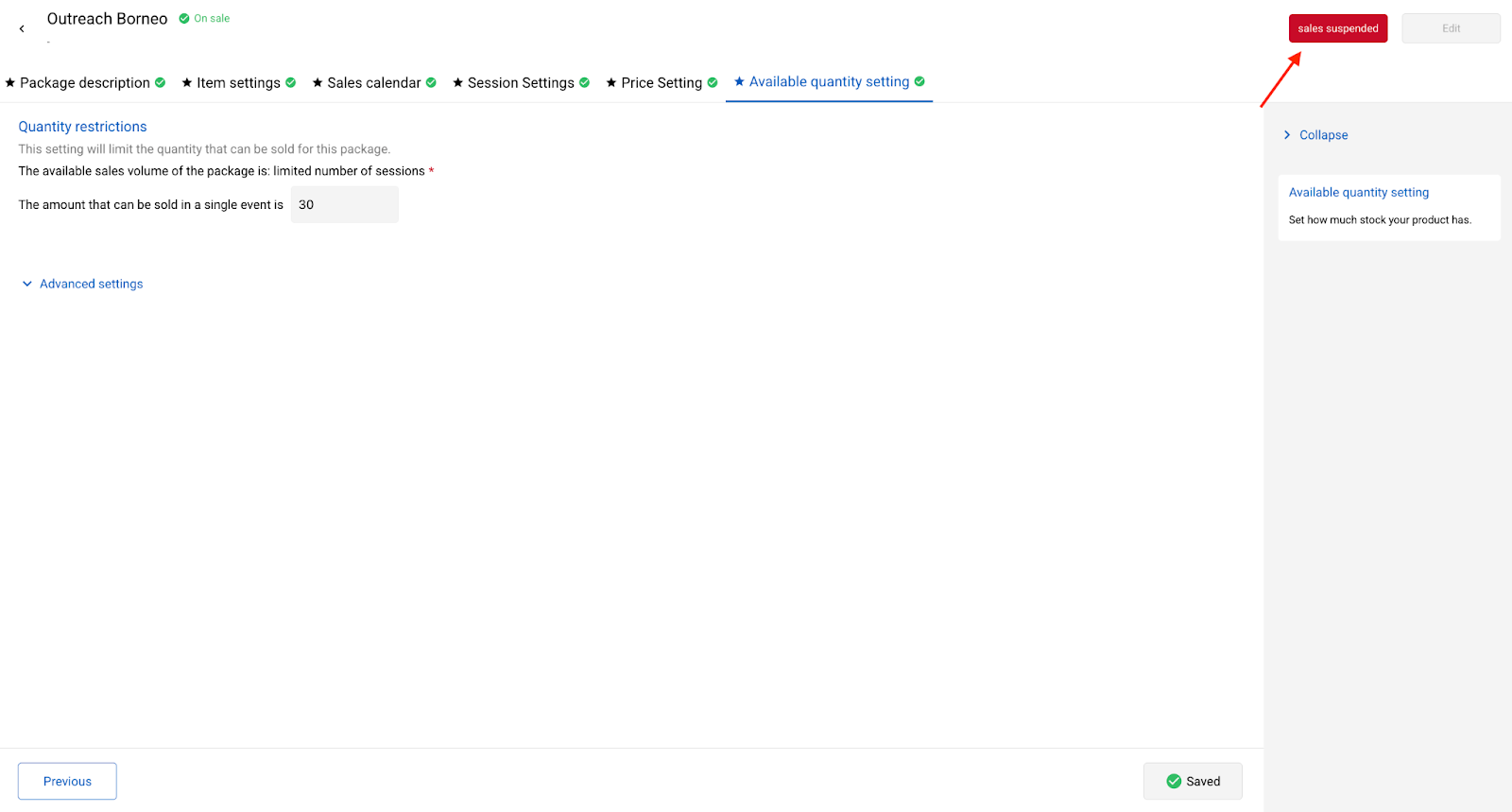
If you wish to modify any setting within the package, you must first click [Pause Sales], and then click [Edit], so that the package status changes to [Editing] before you can modify the content.

Sorting packages order
After you have created multiple packages, you can adjust the order of the packages on the package settings screen.
First, click [Sort] in the package list:

Open the package sorting screen. You can either click the arrow on the right, or click and drag the item on the left to the position you want, and finally click [Save].

Custom Package Advertising Price
Package advertising price will be displayed on the product page, allowing you to set an attractive advertising price for the package.
When you select [Custom Package Advertising Price] default pricing will vary depending on the choice made in the [Purchasing Unit] questionnaire.

The calculation logic for the default itinerary advertising price is as follows:
- If the purchasing unit is [Identity Type] **and combined item specifications are not required, **and the price for [Adult] is set, the Adult price will be used as the advertising price. (For example: If the price is set at Adult NT$1000, Child NT$600, the lowest price displayed will be starting from NT$1000).
- If the purchasing unit is [Identity Type] and combined item specifications are not required, but the price for [Adult] is not set, the lowest price among other identity types will be used as the advertising price. (For example: If the price is set at Child NT$600, Infant NT$450, the lowest price displayed will be starting from NT$450).
- If other purchasing unit settings are selected, the lowest price among all items will be the default advertising price. (For example: If the price is set at Full Ticket NT$600, Half Ticket NT$300, the lowest price displayed will be starting from NT$300).
Publish Settings
After completing the package settings, you also need to set the product's listing rules and the voucher to be used.
Settings Listing Rules

- Order Confirmation Methods: The default is "Instant Confirmation". The system will automatically confirm the order and generate the voucher within one minute after the customer places the order.
- If you select Automatic Confirmation, the system will automatically confirm the order at the time you set. You can choose N days N hours (1 day = 24 hours) starting from the order date or counting back from the departure date.
- If you choose Manual Confirmation, personnel must manually confirm the order. The confirmation time set here is only for customer reference (displayed on the booking page and in the order email).
- If your itinerary will be listed on the MySite, you need to check the payment methods accepted for this itinerary. You can set the available payment methods in [General Settings > Payment Settings]
Voucher Settings
Here you can set whether to send a voucher to the customer after the order is confirmed, informing them of the relevant order and itinerary information, as well as how to check in or use the voucher on-site.

- First, please select the Voucher Type to be used, and then complete the relevant settings based on the selected type.
The system currently offers 5 voucher types, which you can select based on the needs of this itinerary:
- No Voucher: When the voucher type is "None," the order for this itinerary will not send any voucher to the customer, and cannot be redeemed using the rezio App scanning function.
- rezio Voucher: When selecting this type, you can send the system's default rezio public template voucher and rezio QR Code. It can be redeemed by scanning with the rezio App, and supports advanced features such as multi-language, multiple redemptions, customer self-redemption, and adding to Apple Wallet.
- Custom Voucher: When selecting this type, you can use the system's built-in editor to design various voucher templates, customize the text and order information displayed on the voucher, and also provide different vouchers for different language versions.
- Self-Uploaded Voucher: If you have your own designed voucher file, or need to obtain the file from another external system, you can choose the "Self-Uploaded" method, where you manually upload the voucher one by one after each individual order is confirmed.
- Next, you can set the voucher delivery method and the delivery time. This information will be displayed on the product page for customer reference.
- Auto Send - Simultaneous with Confirmation Email: Selecting this option will send the voucher to the customer simultaneously when the order is confirmed.
- Auto Send - Designated Time: When selecting this option, the system will automatically send the voucher to the customer at the time you specify. (Note: The order must be confirmed first for the system to send the voucher.)
- Manual Send - Designated Time: When selecting this option, regardless of the order confirmation method, the voucher is sent manually by personnel.
- Finally, based on the needs of this itinerary and the voucher settings, you can choose the appropriate voucher "Usage Instructions", and you can also customize the usage instructions.

The usage instructions, in addition to being displayed on the voucher, are also shown in the **[How to Use] **section of the product page:
 hen customers access from the [MySite] **to [Check Order] **the usage instructions set at the time of ordering will also be displayed.

Upon completion of this step, all required information for this itinerary has been successfully set. The itinerary status will also change to** [Available for Sale], **and it can be listed on the designated channels.
Of course, you can continue to add more information as needed, including the itinerary, locations, pickup, guided service, price details, add-on items, and tag, etc., to make the itinerary page more complete. For detailed instructions, please see Admin Product | Product Setup: Additional Settings
Listing the Product on Sales Channels
After completing the entire itinerary setup, you need to list the itinerary on the designated sales channels so that customers can purchase the itinerary from the channel's page.
Click "Add Channel" in the upper right corner.

The screen will display the channels that your store has successfully enabled. However, the new version currently supports the MySite, KKday, **KKday Marketplace, GetYourGuide and Viator **channels.

- After successfully adding the channel, click "Go to Channel Settings Page" to continue and complete the publishing settings. For related instructions, please refer to the Product Listing and Publishing Settings.
Important Notes
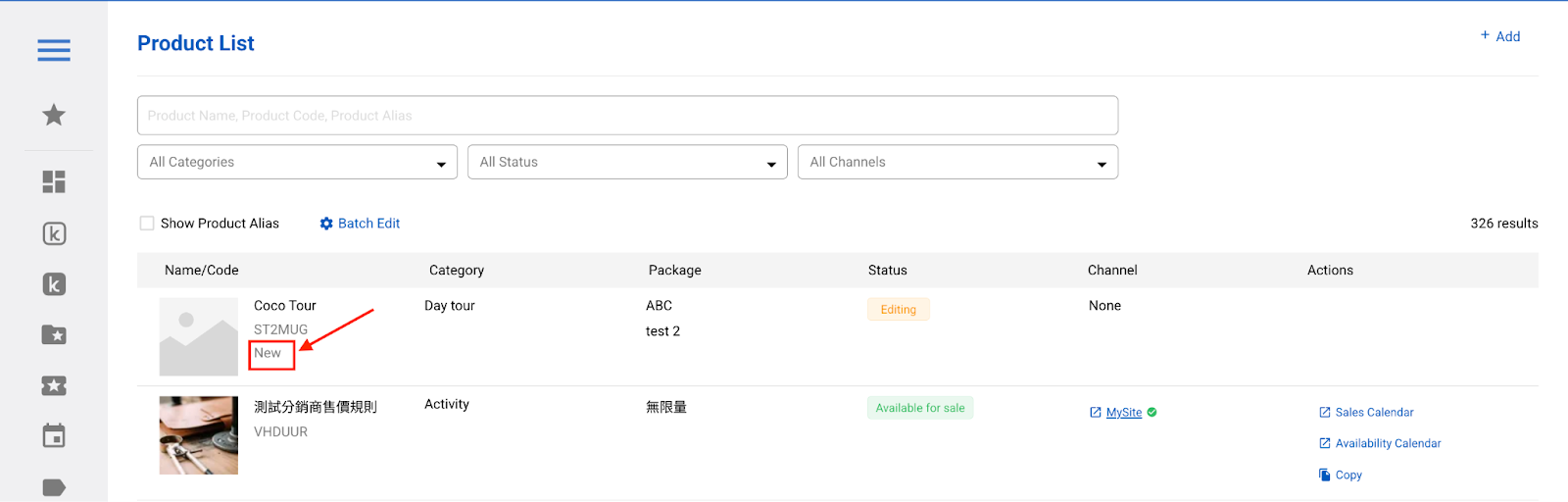
- How to tell if my itinerary is the new version or the original version?
In the Product List - below the Product Code, if it is marked as "New," it means this product was created using the new version. Those not marked are products created using the original version.
- Currently, the new version of product does not yet support:
- Copying product
- [Person], [Multi-People], and [Group] identity categories
- Session times that span across days (e.g., 23:00 ~ 01:00)
- Application forms (limited to Japan stores)
Updated on: 20/11/2025